
English has been my second language of choice for decades. Like any language, English has its share of charms and challenges. Today, I want to briefly discuss English typography—specifically the use of hyphens and dashes—and how to handle them on a regular non-US keyboard.
I use the German keyboard layout. No matter what shortcuts one tries, it won’t offer all the dashes and hyphens that are common in the English language. Fortunately, there is an easy fix for that that I want to share with you.
Why Hyphens and Dashes Exist
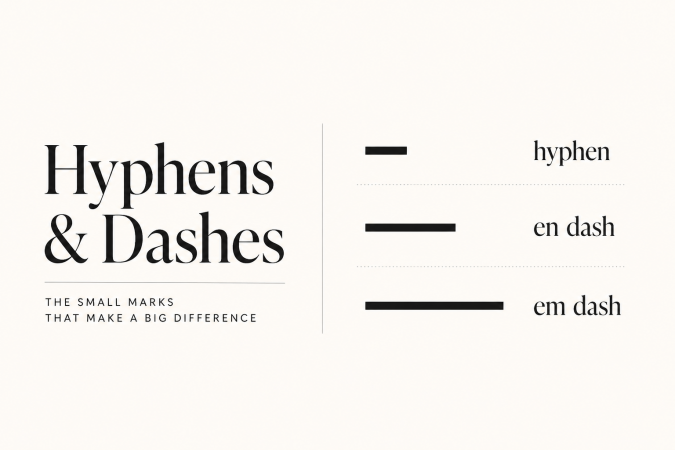
English has three horizontal marks of increasing length, each used for different purposes.
“-“
hyphen (the shortest)
“–”
en dash (medium length)
“—”
em dash (the longest)
Here is a cheat sheet that explains how to use them.
The hyphen (-) joins words and breaks long words across lines.
- State-of-the-art process.
- Well-trained engineer.
Every keyboard has a hyphen key, so I will skip past it.
The en dash “–”is the medium one. It connects ranges and pairs.
- Pages 12–18. The Berlin–Munich line.
- The 2024–2026 program.
Typographers call it the N-dash because its width matches a capital N in the font being used.
The em dash “—” is the long one. It interrupts a sentence the way a parenthesis or a colon does, but with more emphasis.
- He left the office—the door was still swinging—and called his lawyer.
- The cause was obvious—failed integration testing.
The convention I usually follow in my writing (projectcrunch.com, books) is unspaced em dashes—the dash sits directly against the words on either side, with no surrounding whitespace. Some style guides put spaces around them; I prefer the version without spaces because the dash reads as part of the sentence rather than a separator, but it’s just my personal preference.
The problem: my keyboard does not have all of the dashes I need
Even on a US English keyboard, the en dash and em dash are not on any key. You can type them with Alt codes, with autocorrect rules, by holding the hyphen key on a Mac, or by digging through the Insert Special Character menu in Word.
On a German keyboard, the situation is worse. The German layout does not even offer the Alt-code shortcut for these on most setups, and the autocorrect-substitution behavior Word does in English (“convert two hyphens to an em dash”) does not produce the expected result.
The tool I have been running on my machines for years to fix this is AutoHotkey (https://www.autohotkey.com/, in short: AHK) on Windows (by the way, on Linux, there is a similar tool called AutoKey).
What it does for me
AHK is an automation tool that can, among other things, type any text content in the current editor when a predefined hotkey combination is pressed.
For my purposes, I use the hotkey pattern: Shift + Ctrl + Alt + one key. That combination is rarely claimed by any application, which means I can take it for myself without breaking anything.
That tool lets me comfortably customize my keyboard. My most frequently used functions include two hyphen shortcuts, five different date stamps, and a handful that focus or launch the applications I live in—Outlook, Word, OneNote, Edge, KeePass, and dict.cc.
Particularly practical are the hyphen shortcuts:
- Shift + Ctrl + –
… inserts an en dash — - Shift + Ctrl + Alt + –
… inserts an em dash
After a few weeks, my fingers automatically select this combination without having to think about it. As with all my articles, it was typed using these two shortcuts.
The second useful feature of AHK shortcuts is date stamps. When I am writing meeting notes, naming a file, dating a draft, or timestamping any data, I don’t want to type it by hand. I press a hotkey:
- Shift + Ctrl + Alt + . for an English-format date such as 16-May-2026
- Shift + Ctrl + Alt + L for a German-format date such as 16.05.2026
- Shift + Ctrl + Alt + , for an English-format date plus time such as 16-May-2026, 14:32
- Shift + Ctrl + Alt + ü for a date followed by my Windows username and a colon, ready for me to type a comment
- Shift + Ctrl + Alt + # for an ISO-style date such as 2026-05-16—the one I use for folder names, file prefixes, and anything that needs to sort chronologically
The last one is particularly helpful because it generates an ISO-formatted date (like 2026-05-17) that can then be used when creating files with that prefix, enabling clean, unified timestamps that can be easily sorted.
The rest of the script is application-launching stuff. Outlook, Word, OneNote, Edge, and KeePass each have a three-modifier shortcut that focuses the window if it is already running, or starts the program if it is not. Two more shortcuts open a new Outlook task and a new Outlook mail directly, skipping the main Outlook UI.
Setting it up on Windows
AHK is a free, open-source tool.
- Download AutoHotkey from https://www.autohotkey.com and run the installer. Choose v1.1 when the installer asks—the script below uses v1 syntax and will not run on v2.
- Save the script somewhere stable.
I keep mine in my user folder as AutoHotkey.ahk. Any standard text editor will do, and the .ahk extension makes the file directly launchable; double-clicking it runs the script and adds an icon to the system tray. - Set it to auto-start at login.
Press Win + R, type shell:startup, hit Enter. Open a folder; drop a shortcut to your .ahk file into it. From the next sign-in, the script loads on its own, and the hotkeys are live.
My script
Here is my version of the script. You can use it as a starting point and extend it as you go. Remember to reload the script before your changes take place. Note that some paths (e.g., Outlook) may differ on your machine.
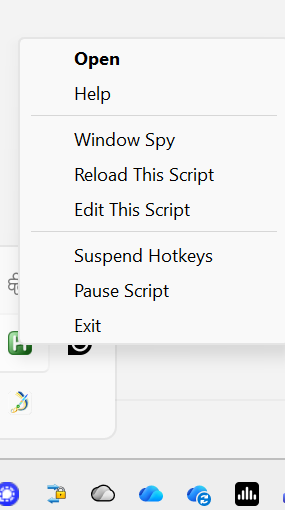
Download and unzip the file. Right-click the AutoHotkey tray icon and pick “Edit This Script” — your default script file opens in Notepad. Paste in the contents of AutoHotkey.ahk (or just save the unzipped file directly in place of your default script), Then right-click the tray icon again and pick Reload This Script. The hotkeys are live from that moment on.
Be faster, more efficient with AHK
Small pieces of waste compound.
If you have to look up today’s date every time you name a new file, the files end up with no date or inconsistent date formats. Little waste compounds into days and months of wasted time—and distracts you from the actual workflow.
If you write a lot on a keyboard that lacks the characters you need, install AutoHotkey, paste this script, and start with the two-hyphen shortcuts. Add the date stamps the next time you find yourself typing a date by hand twice in one day. Before long, you won’t want to miss this little efficiency hack.

I am a project manager (Project Manager Professional, PMP), a Project Coach, a management consultant, and a book author. I have worked in the software industry since 1992 and as a manager consultant since 1998. Please visit my United Mentors home page for more details. Contact me on LinkedIn for direct feedback on my articles.